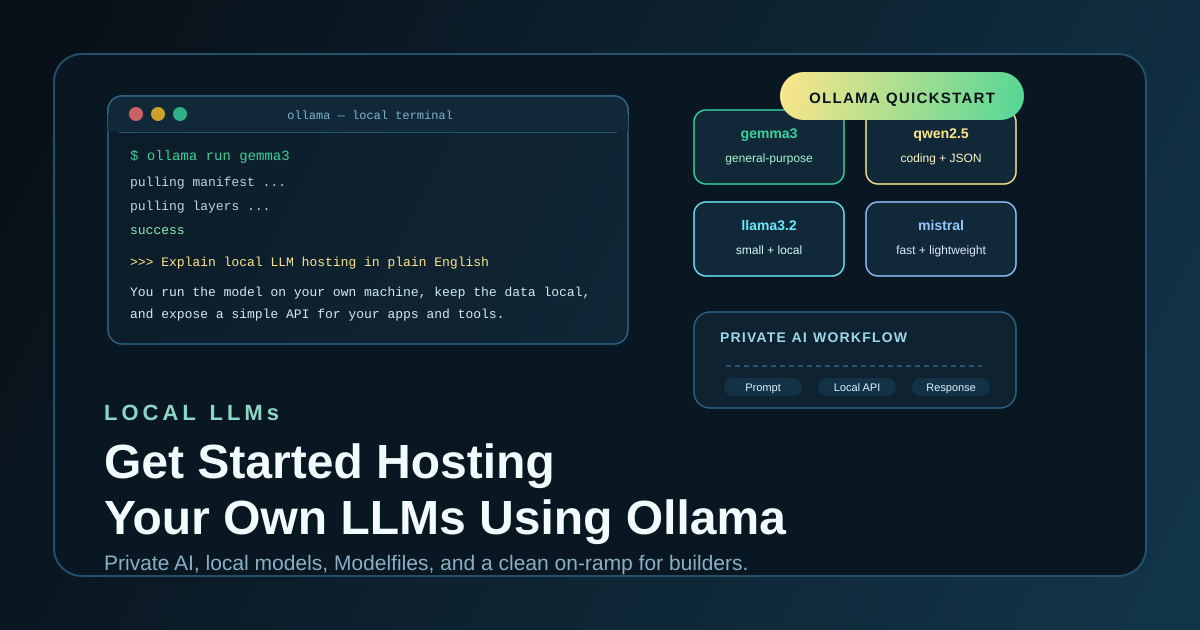
A practical guide to running open models on your own machine without turning your laptop into an accidental research project.
Running LLMs locally used to mean wrestling with CUDA versions, model conversion scripts, runtime flags, and an uncomfortable amount of trial and error. Ollama changed that. It packages model download, local inference, a clean CLI, and a simple API into one workflow that works well enough for day-one experimentation and useful enough for real local tooling.
If your priorities are privacy, low-latency iteration, predictable cost, or just understanding the stack you are building on top of, Ollama is one of the easiest places to start.
This walkthrough reflects the Ollama and Open WebUI documentation available on April 28, 2026.
Why Ollama?
Ollama sits in a very useful middle ground.
It is simpler than assembling your own llama.cpp or vLLM workflow from scratch, but more flexible than being locked into a hosted API. For many developers, that makes it the fastest path to a private local AI environment.
What makes it compelling:
- Privacy-first: your prompts, files, and outputs can stay on your machine.
- Predictable cost: after hardware and electricity, there is no per-token billing for local models.
- Low-latency iteration: you can test prompts, agents, and workflows without waiting on a remote provider.
- Simple model management: pull, run, list, remove, and customize models from one CLI.
- Built-in API: local apps can talk to Ollama over HTTP without extra glue code.
- Broad model ecosystem: the model library includes general-purpose, coding, reasoning, vision, and embedding models.
If you are a developer, researcher, hobbyist, or privacy-conscious power user, this is enough to build a very capable personal AI stack.
Step 1: Install Ollama
Ollama supports macOS, Windows, and Linux.
macOS
- Download the app from ollama.com/download/mac.
- Install the app and let it expose the
ollamaCLI in yourPATH.
Windows
- Download the installer from ollama.com/download/windows.
- After installation, Ollama runs in the background and the CLI is available in PowerShell, Command Prompt, or Windows Terminal.
Linux
curl -fsSL https://ollama.com/install.sh | sh
Verify the install:
ollama -v
On macOS and Windows, the desktop app typically starts the local service for you. On Linux or server-style installs, you may need to start the service explicitly:
ollama serve
Once running, Ollama exposes a local API on http://localhost:11434.
Step 2: Run Your First Model
There are two easy ways to start:
- Run
ollamato use the interactive launcher. - Run a specific model directly from the CLI.
The most direct path looks like this:
ollama run gemma3
Or, if you specifically want to start with a smaller Llama-family model:
ollama run llama3.2
The first time you run a model, Ollama downloads it automatically and then drops you into an interactive chat.
Good starter models
Your best first model depends on your hardware more than your ideology.
gemma3: a strong default if you want a capable general-purpose model that still runs locally.llama3.2: a simple starting point for smaller local deployments.qwen2.5:3borqwen2.5:7b: strong general-purpose choices, especially if you care about coding and structured output.qwen2.5-coder: a solid option for code generation, refactoring, and debugging tasks.mistral: lightweight and fast on modest hardware.phi3: useful when you need something compact.
List the models already on your machine:
ollama ls
Browse more options in the Ollama Library.
A practical note on quantization
If your machine is memory-constrained, smaller quantized variants are usually the right answer. A slightly smaller model that runs reliably is more useful than a larger one that swaps, stalls, or crashes.
As a rule, optimize for consistency first, then scale model size upward once you know your hardware can carry it.
Step 3: Learn the Core Commands
These are the commands you will use constantly:
ollama pull <model>: download a model without starting a chat.ollama run <model>: run a model interactively.ollama ls: list local models.ollama ps: show models currently loaded in memory.ollama rm <model>: remove a local model.ollama serve: start the local Ollama server.
That is enough to cover most day-to-day usage.
Step 4: Add a Web UI
The CLI is enough for serious work, but a browser UI is often better for experimentation, sharing, and file-based workflows.
Open WebUI is the easiest upgrade path. It gives you a ChatGPT-style interface on top of your local Ollama instance.
Quick start with Docker:
docker run -d -p 3000:8080 \
  --add-host=host.docker.internal:host-gateway \
  -v open-webui:/app/backend/data \
  --name open-webui \
  --restart always \
  ghcr.io/open-webui/open-webui:main
Then open:
http://localhost:3000
If Open WebUI is running in Docker while Ollama runs on your host machine, point Open WebUI at:
http://host.docker.internal:11434
Once connected, you get a much more comfortable local chat environment for comparing models, testing prompts, and working with uploaded content.
Step 5: Customize Behavior with a Modelfile
One of Ollama’s most useful features is the Modelfile.
Think of it as a reproducible recipe for a tailored assistant: base model, system behavior, runtime parameters, and example conversation structure in one file.
Example:
FROM llama3.2

SYSTEM """
You are a helpful coding assistant specialized in Python and web development.
Always respond with clear, commented code examples.
"""

PARAMETER temperature 0.7
PARAMETER num_ctx 8192

MESSAGE user "Explain how to build a REST API"
MESSAGE assistant "Sure. Here's a clean FastAPI example and why each part exists."
Build it:
ollama create my-coder -f Modelfile
Then run it:
ollama run my-coder
This is a very effective pattern for role-specific assistants: coding helpers, internal documentation bots, architecture reviewers, domain-specific writers, or local support tools.
Step 6: Use Ollama from Code
Ollama exposes a local HTTP API, but the Python library is an easy place to start.
Install it:
pip install ollama
Python example:
from ollama import chat

response = chat(
    model="gemma3",
    messages=[
        {
            "role": "user",
            "content": "Write a Python function that returns the Fibonacci sequence up to n elements.",
        }
    ],
)

print(response.message.content)
This is enough to wire Ollama into scripts, developer tools, side projects, or local prototypes without going through a hosted API.
Hardware Reality Check
Local model serving is not magic. Hardware still matters.
Useful rough guidance:
- 8 GB to 16 GB memory: stay in the small-model range and favor compact or quantized models.
- 16 GB to 32 GB memory: 7B-class models become much more comfortable.
- 24 GB+ dedicated GPU VRAM or large unified memory systems: you can move into larger and more capable models with fewer compromises.
Two practical rules matter more than any size chart:
- Smaller models that are always available beat larger models that are unstable.
- Context length and quantization settings can matter just as much as parameter count.
If performance feels wrong, check ollama ps first. It is the fastest way to confirm whether a model is fitting in GPU memory, CPU memory, or both.
What Ollama Is Great For
Once the basics are working, the common next steps are obvious:
- a private coding assistant
- local document Q&A
- offline experimentation on a laptop
- prompt testing without API cost
- lightweight internal tools for developers or analysts
- evaluating open models before building a larger self-hosted platform
For many people, Ollama is not the final production serving layer. It is the fastest way to learn what your workloads actually need before you commit to a heavier stack.
Final Take
If you want to explore local AI without spending a week assembling plumbing, Ollama is one of the best on-ramps available right now.
Install it, pull a model, and start with something small and reliable. Add Open WebUI when you want a better interface. Reach for Modelfiles when you want repeatable custom behavior. Move to heavier infrastructure only after you understand your real workload.
That sequence will teach you more than reading another dozen model benchmark threads.